
Accessing settings
Navigate to Settings in the side rail (or the bottom tab bar on mobile).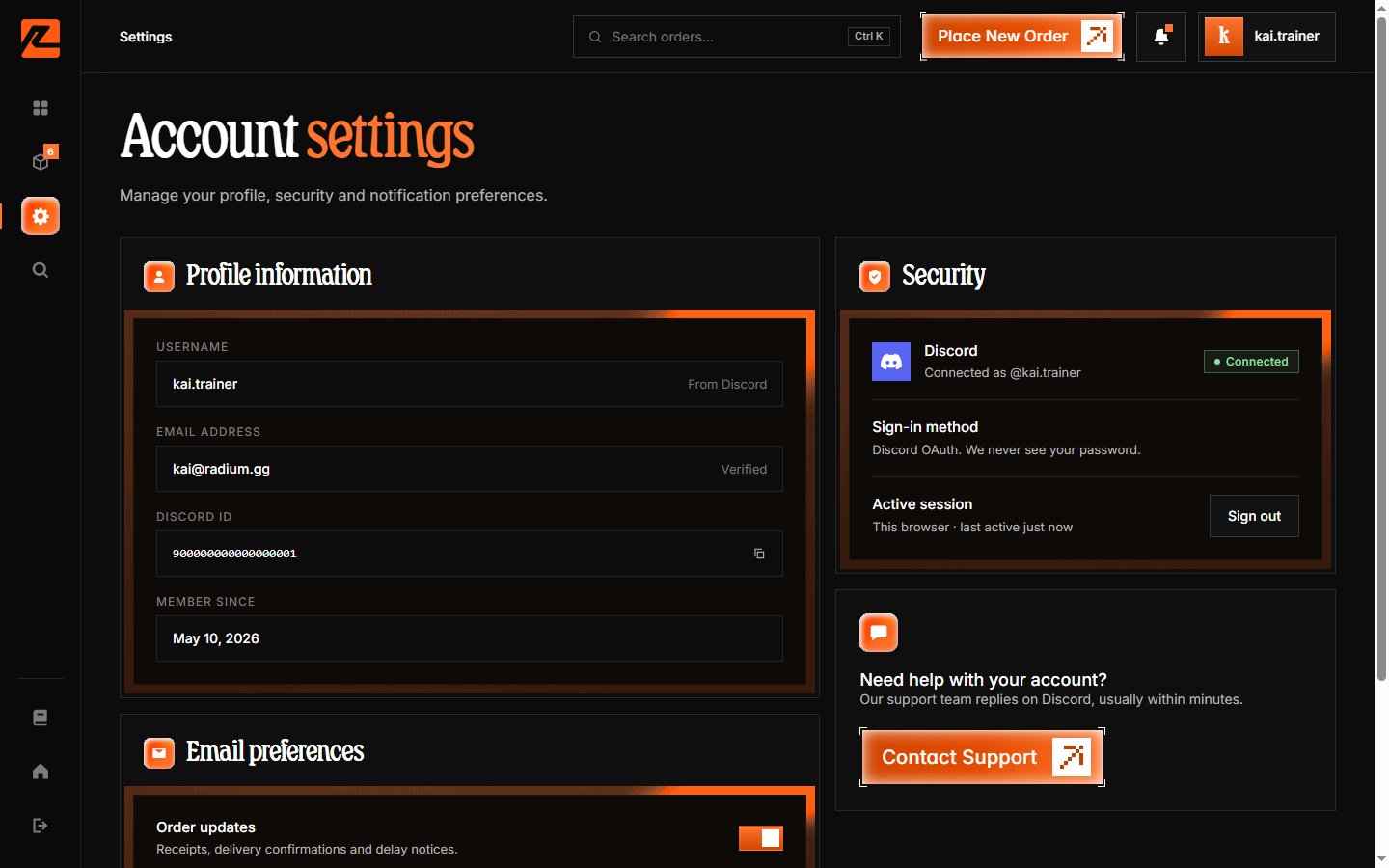
Profile information
The first card shows the details that come from your Discord account:- Username — your Discord username, labelled “From Discord”.
- Email — the email on your Discord account, used for order confirmations.
- Discord ID — your numeric Discord ID, with a copy button (useful when contacting support).
- Member since — when your Radium Store account was created.
To update your username or email, change it in your Discord account settings. The update is picked up on your next sign-in.
Email preferences
Two toggles control what lands in your inbox:- Order updates — emails about order progress and delivery.
- Promotions & restocks — special deals, discount announcements, and restock alerts.
Security
The security card shows:- Discord — Connected: your sign-in uses Discord OAuth, so we never see your password.
- Active session — the session you are currently signed in with, plus a Sign out button. Signing out asks for confirmation (“Sign out of Radium Store?”) and ends the session; your account and order history are untouched.