
Accessing the overview
After signing in with Discord you are taken straight to the Overview. You can get back to it at any time by clicking Dashboard in the side rail (desktop) or the bottom tab bar (mobile).Page layout
The Overview page greets you by name and is divided into several sections.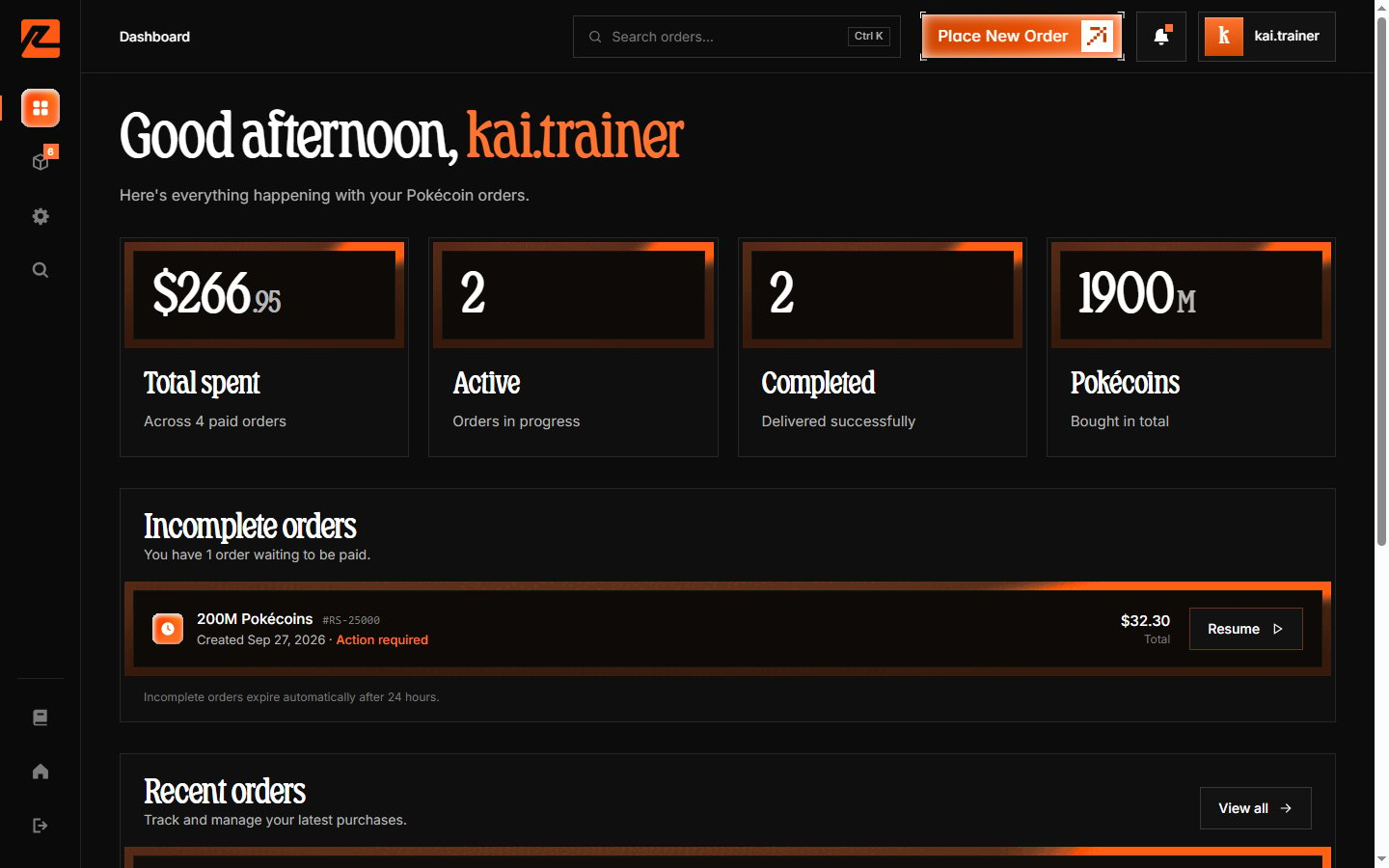
Statistics cards
At the top of the Overview, four stat cards summarize your account:- Total spent — your lifetime spend, with the number of paid orders underneath (“Across N paid orders”).
- Active — orders currently being processed or awaiting payment.
- Completed — orders that have been fully delivered.
- Pokécoins — the total Pokécoins you have purchased, shown in millions (M).
Incomplete orders
If you started checkout but never finished paying, those orders appear here with a Resume button that takes you back to the payment step.Unpaid orders are held for 24 hours and then expire automatically. If your order expired, simply start a new one.
Recent orders
Below the stats you will find your five most recent orders, each showing:- Order number — the unique reference (e.g.
RS-25001); use it when contacting support. - Pokécoin amount — how many Pokécoins the order is for.
- Status pill — the current state (Processing, Delivered, Awaiting payment, etc.).
- Type tag — Instant, Pre-order, or Hybrid.
- Date — when the order was placed.
Navigation
On desktop, a side rail on the left links to every dashboard section:- Dashboard — the Overview page
- Orders — your complete order history
- Settings — account details and preferences
- Search — opens the search palette (see below)
Search palette
Click Search or press Ctrl+K (⌘K on Mac) to open the search palette. Type an order number, amount, or status to jump straight to an order, or to a dashboard page. Use ↑/↓ to move and Enter to open.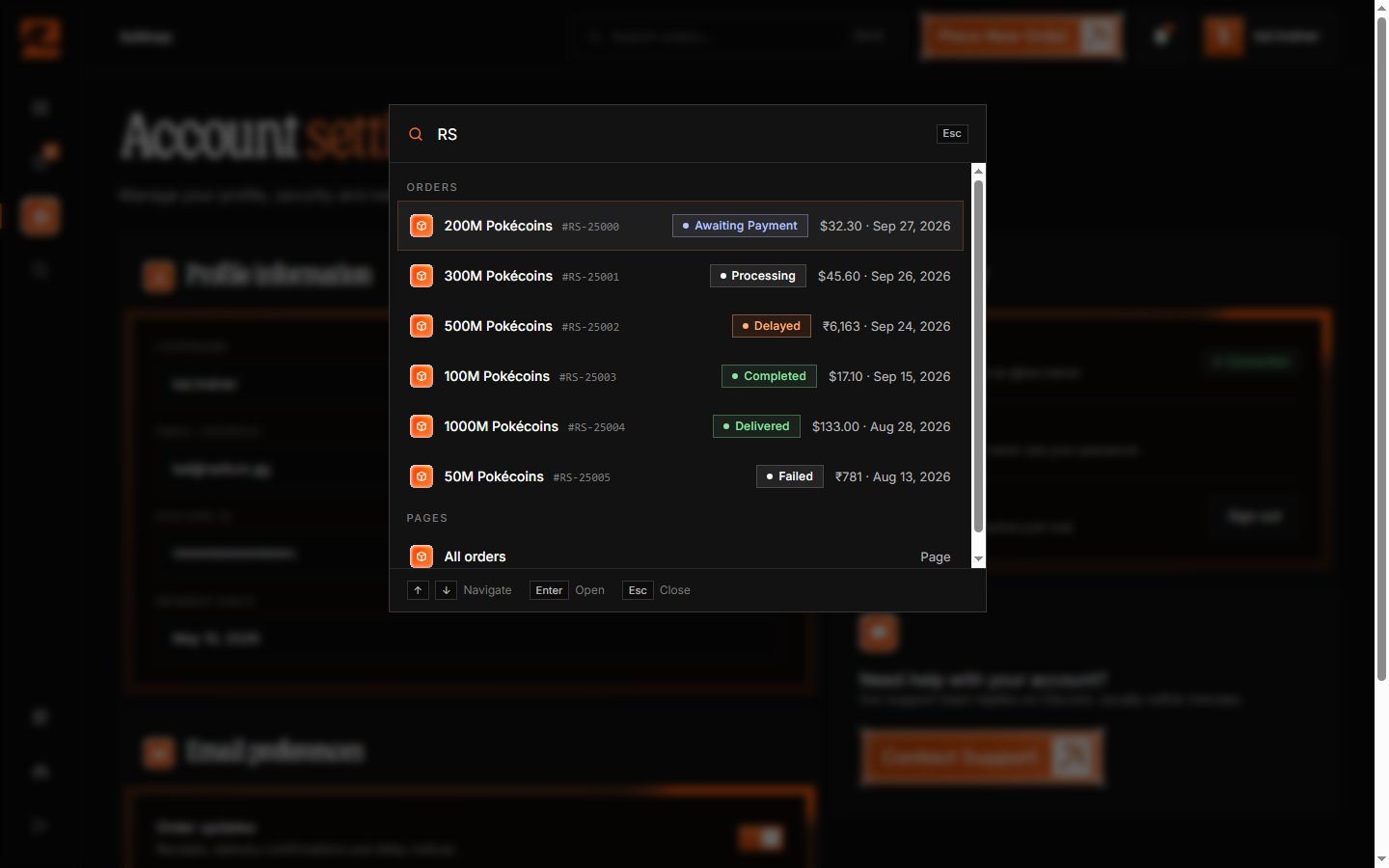
Mobile navigation
On mobile, the rail collapses into a bottom tab bar — Dashboard, Orders, Search, and Settings — and a floating + button starts a new order.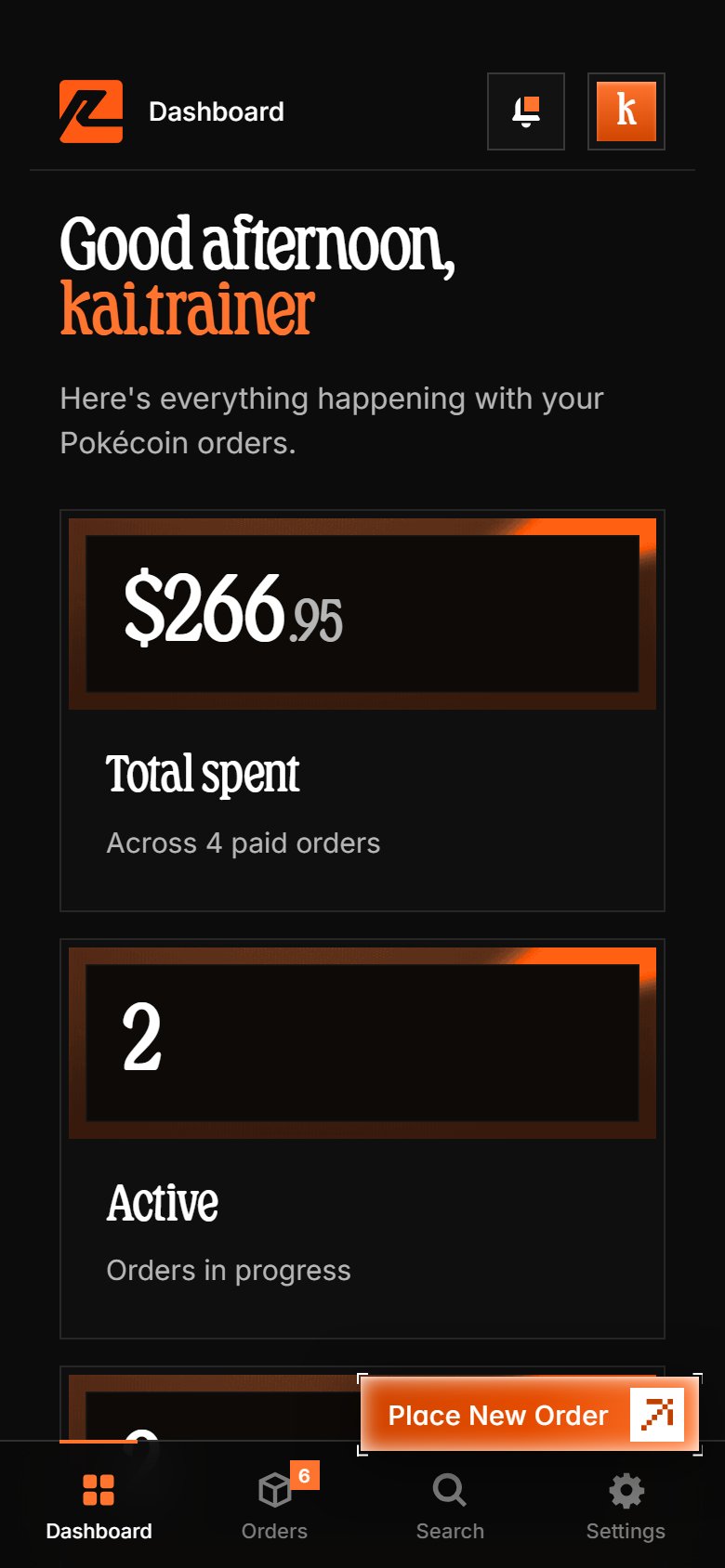
What to do next
From the Overview, you can:- Place a new order via Place New Order
- View your order history to check past purchases
- Update your settings to manage email preferences
Continue to Orders to learn about managing your complete order history.