
Viewing your orders
Navigate to Orders in the side rail (or the bottom tab bar on mobile) to open your order list. Orders are shown newest first, eight per page, with pagination controls at the bottom.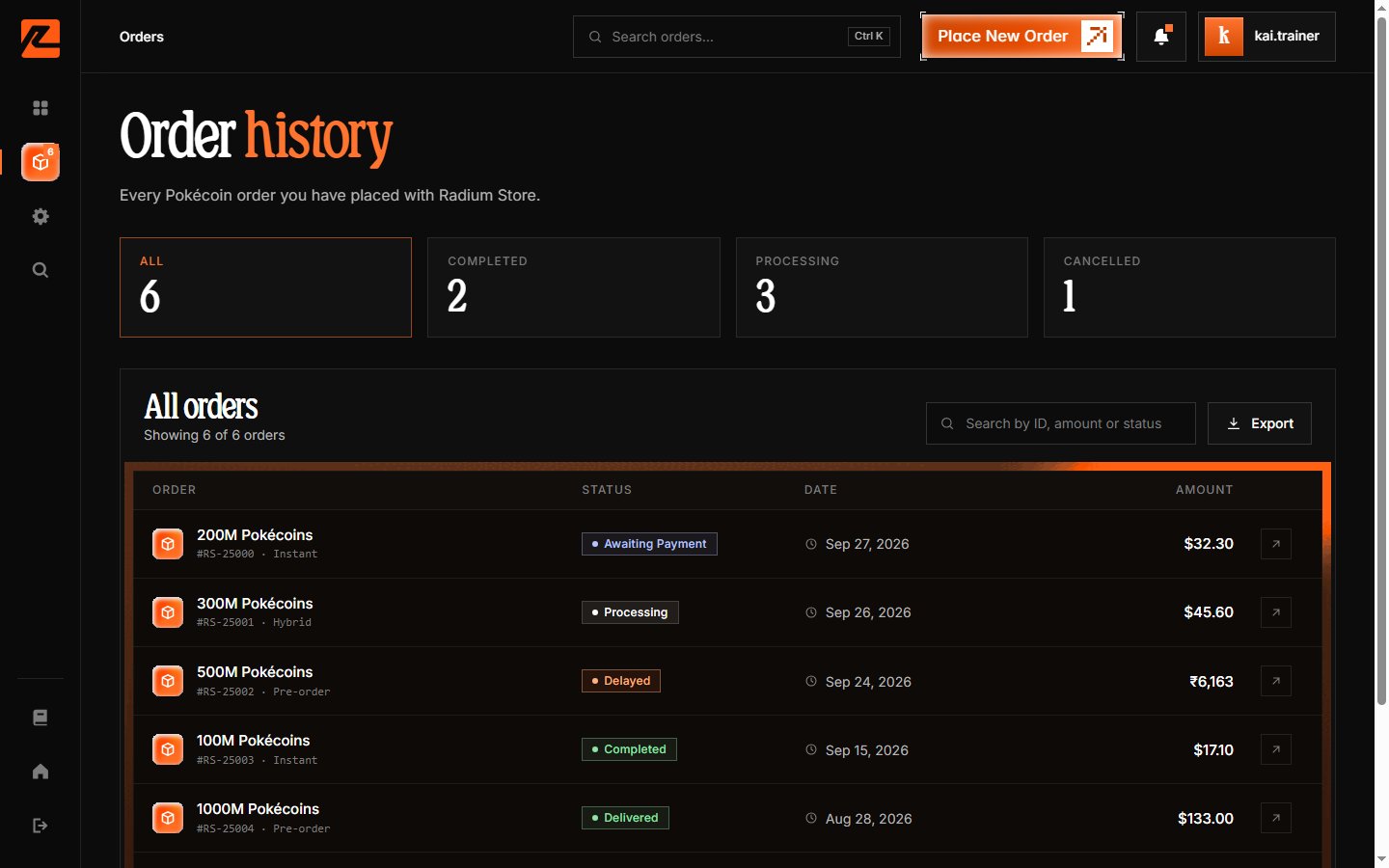
Order information
Each order row displays: Order number — a unique identifier formatted asRS- followed by a number. Use this reference when contacting support about a specific order.
Pokécoin amount — the quantity of Pokécoins in the order, in millions (M).
Status pill — the current state of the order (see tracking statuses for details).
Type tag — Instant, Pre-order, or Hybrid (part instant, part scheduled).
Total and date — the amount paid and when the order was placed.
Filtering and searching
The orders page includes: Status chips: All, Completed, Processing, and Cancelled, each with a count. Click a chip to show only matching orders. Search: type into “Search by ID, amount or status” to match an order by its number, Pokécoin amount, or status label.Filters combine — for example, the Processing chip plus a search for
100M shows only in-progress 100M orders.Order details
Click any order to open its details page, which shows the delivery progress, tracking timeline, market IDs, receipt, and support options. See the View your order guide for a full walkthrough.Exporting order history
Click Export at the top of the orders list to downloadorder_history.csv. The file includes the order number, status, amount, Pokécoins, date, and payment status for every order — handy for your own records.
Order status
Each order displays a status pill showing the current stage — for example Awaiting payment, Processing, Delayed, or Delivered. For a complete explanation of every status, see Tracking statuses.Open any order to see live progress in View your order, or check what each status means in Tracking statuses.