> ## Documentation Index
> Fetch the complete documentation index at: https://docs.radiumstore.org/llms.txt
> Use this file to discover all available pages before exploring further.
# UPI
> Pay for your Pokécoins using UPI (Unified Payments Interface)
UPI (Unified Payments Interface) is available for customers in India. This payment method allows instant bank-to-bank transfers through any UPI-enabled app, charged in INR.
## Requirements
To pay with UPI, you need:
* A bank account linked to UPI
* A UPI app installed on your phone (Google Pay, PhonePe, Paytm, BHIM, or any other UPI-enabled app)
## Supported UPI apps
Any UPI-enabled app works with Radium Store, including:
* Google Pay
* PhonePe
* Paytm
* BHIM
* Amazon Pay
* WhatsApp Pay
* Bank-specific UPI apps
## How to pay with UPI
On the payment method step, choose **UPI**. The card shows the INR total, converted at the current rate.
The payment page displays a QR code and the exact INR amount to pay.
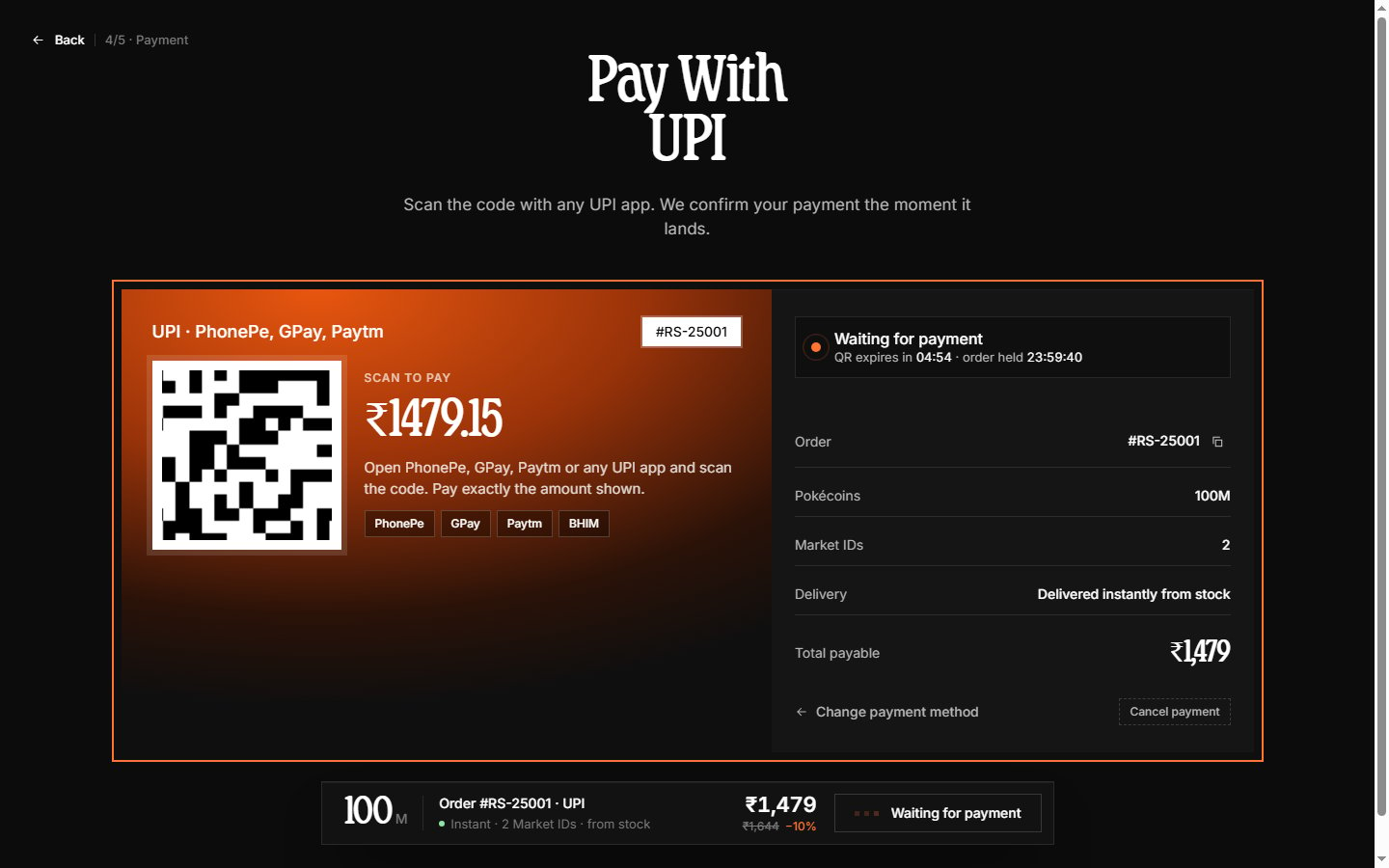 The QR code is valid for **5 minutes** — if it expires, a fresh one is generated automatically.
1. Open your UPI app
2. Select the scan or QR code option
3. Scan the QR code displayed on the payment page
4. Verify the amount and recipient
5. Enter your UPI PIN to authorize
The payment page checks for your payment every few seconds and detects it automatically — typically within seconds of your UPI app confirming.
Do not close the payment page until confirmation appears. If you need to switch methods, use **Cancel payment** to release the order back to the method step.
Once payment is confirmed, the page continues to the order confirmation screen showing delivery status.
## Payment amount
When paying via UPI, ensure you send the exact amount displayed on the payment page. The amount is in Indian Rupees (INR).
Sending an incorrect amount may delay order processing. If you accidentally send the wrong amount, contact support immediately with your UPI transaction reference.
## Processing time
UPI payments are processed in real-time. Once you authorize the payment in your UPI app, confirmation typically appears on the Radium Store page within seconds.
If confirmation takes longer than 2 minutes, the payment may have failed. Check your UPI app transaction history to verify whether the payment was deducted.
## Troubleshooting
Ensure your camera has permission to scan QR codes. Try adjusting lighting or distance. If the QR expired, a new one appears on the page automatically.
Wait up to 5 minutes for the payment notification to reach our system. If the order still shows pending, contact support on [Discord](https://discord.gg/TfKV8Xeh2r) with:
* Your UPI transaction reference number
* Screenshot of the successful payment from your UPI app
* Your Radium Store order number
UPI depends on bank servers which occasionally experience downtime. Wait a few minutes and try again, or use a different payment method.
## Refunds
Refunds for UPI payments are returned to the original bank account. Processing typically completes within 3-5 business days, though some refunds may appear faster.
***
Learn about cryptocurrency payments in [Crypto](/crypto).
The QR code is valid for **5 minutes** — if it expires, a fresh one is generated automatically.
1. Open your UPI app
2. Select the scan or QR code option
3. Scan the QR code displayed on the payment page
4. Verify the amount and recipient
5. Enter your UPI PIN to authorize
The payment page checks for your payment every few seconds and detects it automatically — typically within seconds of your UPI app confirming.
Do not close the payment page until confirmation appears. If you need to switch methods, use **Cancel payment** to release the order back to the method step.
Once payment is confirmed, the page continues to the order confirmation screen showing delivery status.
## Payment amount
When paying via UPI, ensure you send the exact amount displayed on the payment page. The amount is in Indian Rupees (INR).
Sending an incorrect amount may delay order processing. If you accidentally send the wrong amount, contact support immediately with your UPI transaction reference.
## Processing time
UPI payments are processed in real-time. Once you authorize the payment in your UPI app, confirmation typically appears on the Radium Store page within seconds.
If confirmation takes longer than 2 minutes, the payment may have failed. Check your UPI app transaction history to verify whether the payment was deducted.
## Troubleshooting
Ensure your camera has permission to scan QR codes. Try adjusting lighting or distance. If the QR expired, a new one appears on the page automatically.
Wait up to 5 minutes for the payment notification to reach our system. If the order still shows pending, contact support on [Discord](https://discord.gg/TfKV8Xeh2r) with:
* Your UPI transaction reference number
* Screenshot of the successful payment from your UPI app
* Your Radium Store order number
UPI depends on bank servers which occasionally experience downtime. Wait a few minutes and try again, or use a different payment method.
## Refunds
Refunds for UPI payments are returned to the original bank account. Processing typically completes within 3-5 business days, though some refunds may appear faster.
***
Learn about cryptocurrency payments in [Crypto](/crypto).