> ## Documentation Index
> Fetch the complete documentation index at: https://docs.radiumstore.org/llms.txt
> Use this file to discover all available pages before exploring further.
# Sign up and log in
> Create your Radium Store account using Discord authentication
Radium Store uses Discord for authentication. This means you do not need to create a separate username and password. Instead, you sign in with your existing Discord account, and you stay signed in until you log out.
## Creating your account
Click **Buy Now** on [radiumstore.org](https://radiumstore.org) — if you are not signed in, you land on the **Sign in to Radium Store** page. Click **Continue with Discord**.
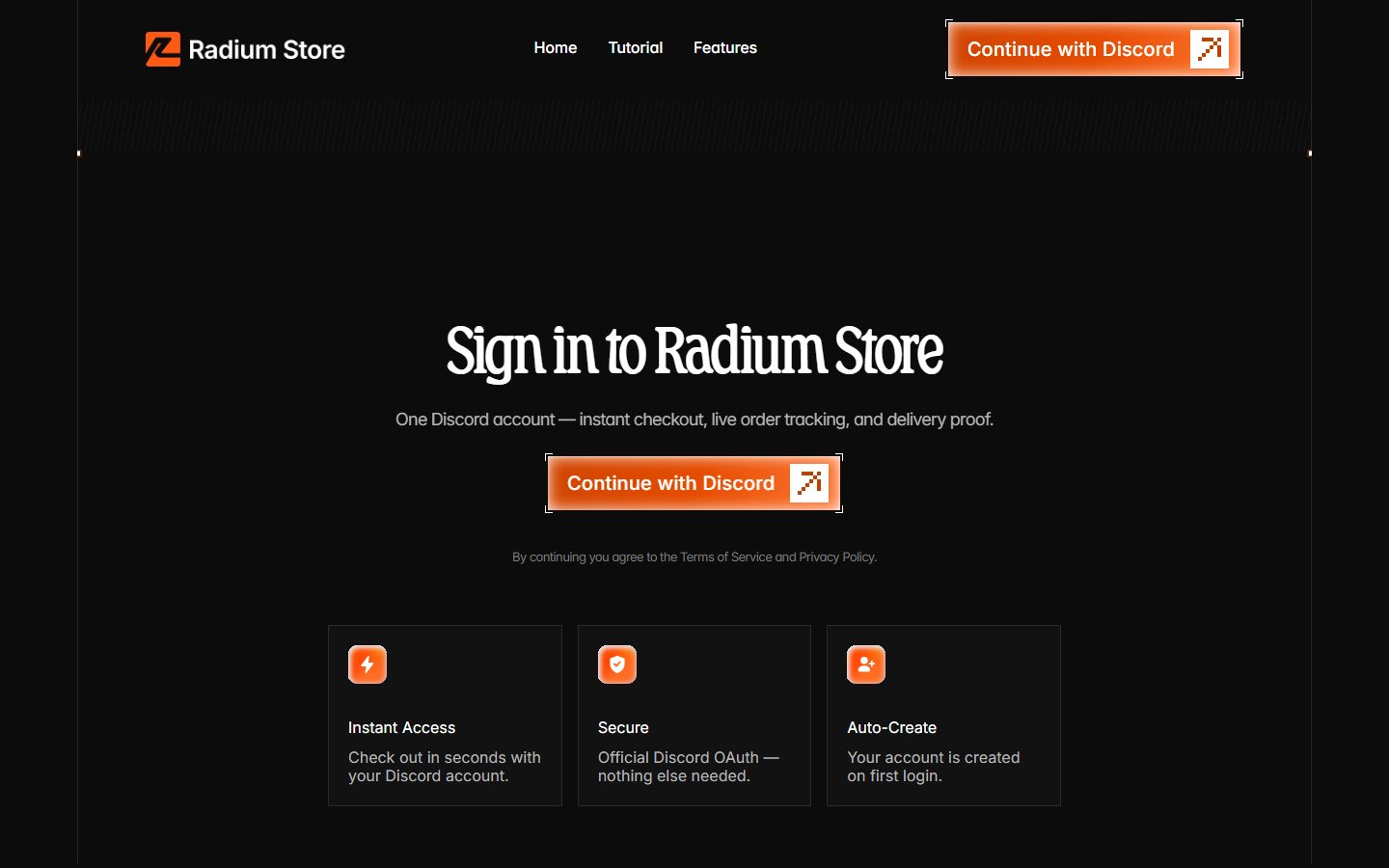 You are redirected to Discord's official authorization page, which shows what information Radium Store is requesting access to.
Review the permissions and click **Authorize** to continue.

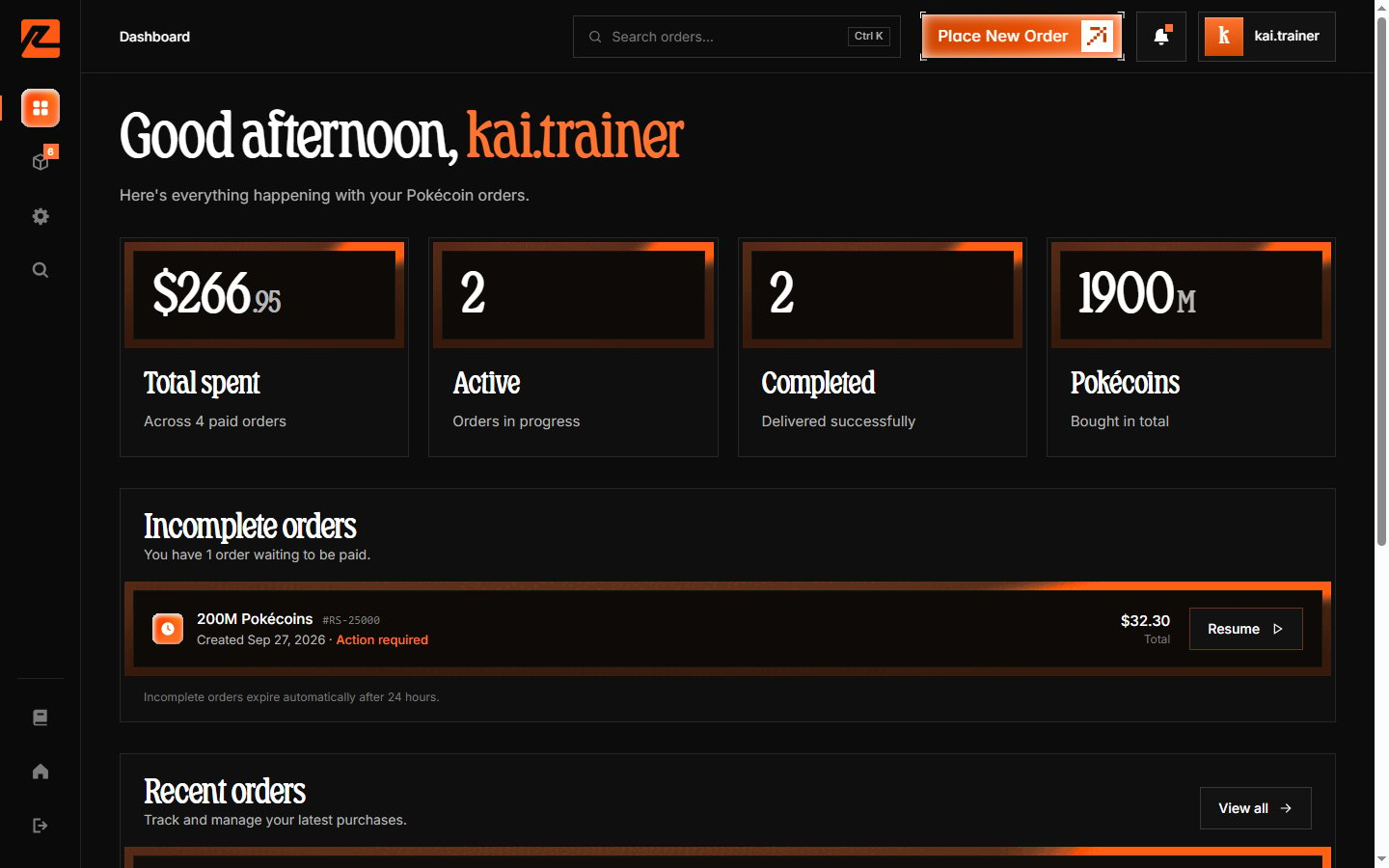
After authorization, you are redirected back to Radium Store. Your account is created and you land on your dashboard overview.
You are redirected to Discord's official authorization page, which shows what information Radium Store is requesting access to.
Review the permissions and click **Authorize** to continue.

After authorization, you are redirected back to Radium Store. Your account is created and you land on your dashboard overview.
 ## What information we receive
When you authorize Radium Store, Discord shares only basic profile information:
* Your Discord username
* Your Discord user ID
* Your email address (for order confirmations)
* Your profile picture
We do not receive access to your Discord messages, servers, friends list, or any private information.
Concerned about authorizing Discord? Read [Why we require Discord](/why-discord) for a detailed explanation of how OAuth works and why your account remains completely secure.
## Logging in to an existing account
If you already have a Radium Store account, the login process is identical to signing up. Open the sign-in page, click **Continue with Discord**, authorize, and you will be taken to your dashboard with access to your order history and account settings.
## Troubleshooting
If the authorization fails, ensure you are logged into the correct Discord account in your browser. Try logging out of Discord and back in, then attempt the authorization again.
If you have multiple Discord accounts and signed into the wrong one, sign out of Radium Store from **Settings → Sign out** (or the sign-out control in the dashboard navigation), then sign in again with the correct Discord account. Make sure you are logged into the same Discord account in your browser.
Ensure the email associated with your Discord account is correct and check your spam folder. You can update your Discord email in Discord's user settings, and it will be picked up on your next sign-in.
***
Once you have created your account, you can proceed to [place your first order](/how-to-order) or explore your [dashboard](/overview).
## What information we receive
When you authorize Radium Store, Discord shares only basic profile information:
* Your Discord username
* Your Discord user ID
* Your email address (for order confirmations)
* Your profile picture
We do not receive access to your Discord messages, servers, friends list, or any private information.
Concerned about authorizing Discord? Read [Why we require Discord](/why-discord) for a detailed explanation of how OAuth works and why your account remains completely secure.
## Logging in to an existing account
If you already have a Radium Store account, the login process is identical to signing up. Open the sign-in page, click **Continue with Discord**, authorize, and you will be taken to your dashboard with access to your order history and account settings.
## Troubleshooting
If the authorization fails, ensure you are logged into the correct Discord account in your browser. Try logging out of Discord and back in, then attempt the authorization again.
If you have multiple Discord accounts and signed into the wrong one, sign out of Radium Store from **Settings → Sign out** (or the sign-out control in the dashboard navigation), then sign in again with the correct Discord account. Make sure you are logged into the same Discord account in your browser.
Ensure the email associated with your Discord account is correct and check your spam folder. You can update your Discord email in Discord's user settings, and it will be picked up on your next sign-in.
***
Once you have created your account, you can proceed to [place your first order](/how-to-order) or explore your [dashboard](/overview).