> ## Documentation Index
> Fetch the complete documentation index at: https://docs.radiumstore.org/llms.txt
> Use this file to discover all available pages before exploring further.
# Overview
> Your dashboard homepage — the first screen you see after logging in
The Overview is the first page you see when you log into your Radium Store dashboard. It provides a snapshot of your account activity, your recent orders, and quick access to placing a new order.
## Accessing the overview
After signing in with Discord you are taken straight to the Overview. You can get back to it at any time by clicking **Dashboard** in the side rail (desktop) or the bottom tab bar (mobile).
***
## Page layout
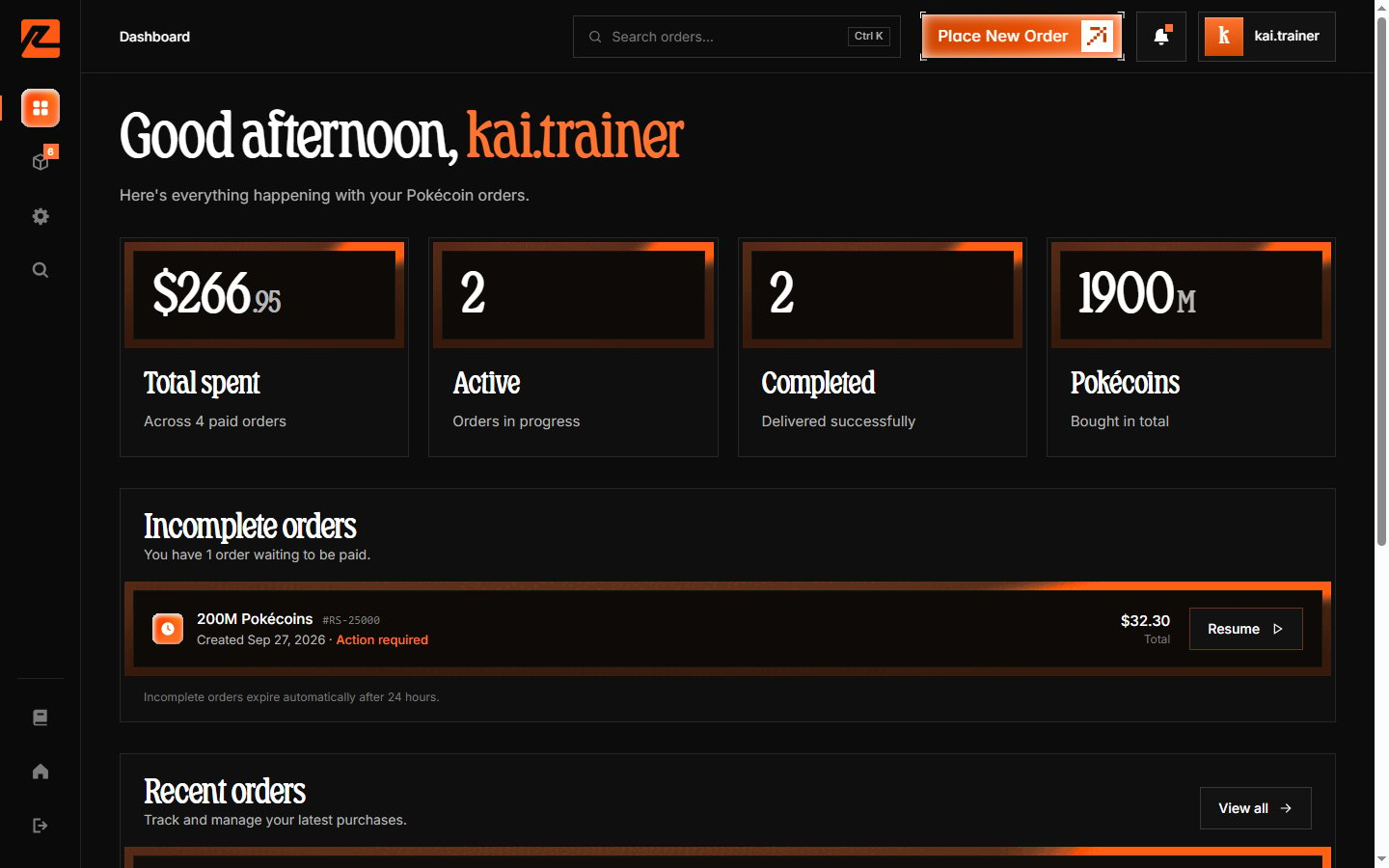
The Overview page greets you by name and is divided into several sections.
 ***
## Statistics cards
At the top of the Overview, four stat cards summarize your account:
* **Total spent** — your lifetime spend, with the number of paid orders underneath ("Across N paid orders").
* **Active** — orders currently being processed or awaiting payment.
* **Completed** — orders that have been fully delivered.
* **Pokécoins** — the total Pokécoins you have purchased, shown in millions (M).
***
## Incomplete orders
If you started checkout but never finished paying, those orders appear here with a **Resume** button that takes you back to the payment step.
Unpaid orders are held for **24 hours** and then expire automatically. If your order expired, simply start a new one.
## Recent orders
Below the stats you will find your five most recent orders, each showing:
* **Order number** — the unique reference (e.g. `RS-25001`); use it when contacting support.
* **Pokécoin amount** — how many Pokécoins the order is for.
* **Status pill** — the current state (Processing, Delivered, Awaiting payment, etc.).
* **Type tag** — Instant, Pre-order, or Hybrid.
* **Date** — when the order was placed.
Click any order to open its full details page, or click **View all** to open the complete [Orders](/orders) list.
***
## Navigation
On desktop, a side rail on the left links to every dashboard section:
* **Dashboard** — the Overview page
* **Orders** — your complete order history
* **Settings** — account details and preferences
* **Search** — opens the search palette (see below)
The header also has a **Place New Order** button, a notifications bell (your latest order updates), and your account menu with sign-out.
### Search palette
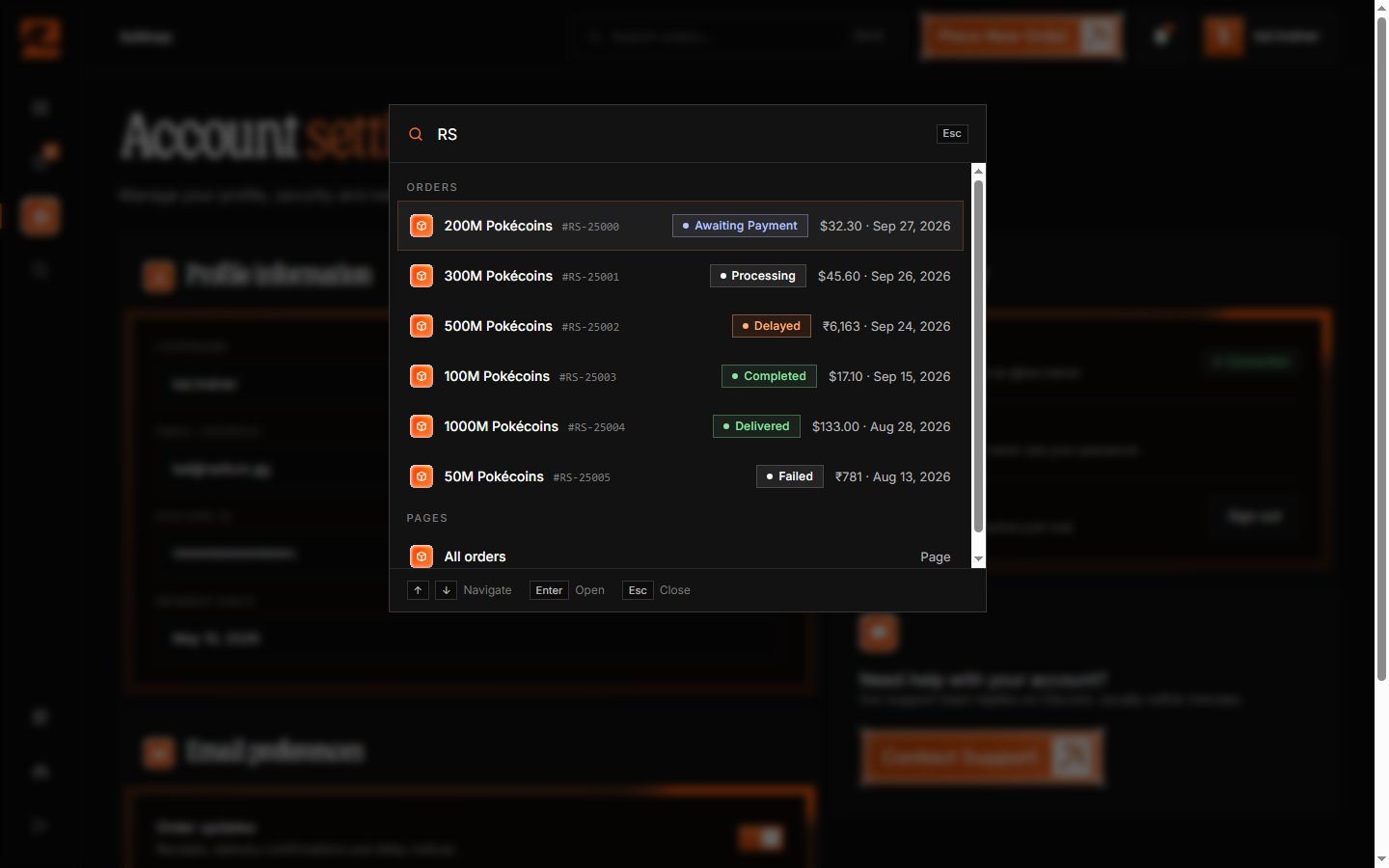
Click **Search** or press **Ctrl+K** (⌘K on Mac) to open the search palette. Type an order number, amount, or status to jump straight to an order, or to a dashboard page. Use ↑/↓ to move and Enter to open.
***
## Statistics cards
At the top of the Overview, four stat cards summarize your account:
* **Total spent** — your lifetime spend, with the number of paid orders underneath ("Across N paid orders").
* **Active** — orders currently being processed or awaiting payment.
* **Completed** — orders that have been fully delivered.
* **Pokécoins** — the total Pokécoins you have purchased, shown in millions (M).
***
## Incomplete orders
If you started checkout but never finished paying, those orders appear here with a **Resume** button that takes you back to the payment step.
Unpaid orders are held for **24 hours** and then expire automatically. If your order expired, simply start a new one.
## Recent orders
Below the stats you will find your five most recent orders, each showing:
* **Order number** — the unique reference (e.g. `RS-25001`); use it when contacting support.
* **Pokécoin amount** — how many Pokécoins the order is for.
* **Status pill** — the current state (Processing, Delivered, Awaiting payment, etc.).
* **Type tag** — Instant, Pre-order, or Hybrid.
* **Date** — when the order was placed.
Click any order to open its full details page, or click **View all** to open the complete [Orders](/orders) list.
***
## Navigation
On desktop, a side rail on the left links to every dashboard section:
* **Dashboard** — the Overview page
* **Orders** — your complete order history
* **Settings** — account details and preferences
* **Search** — opens the search palette (see below)
The header also has a **Place New Order** button, a notifications bell (your latest order updates), and your account menu with sign-out.
### Search palette
Click **Search** or press **Ctrl+K** (⌘K on Mac) to open the search palette. Type an order number, amount, or status to jump straight to an order, or to a dashboard page. Use ↑/↓ to move and Enter to open.
 ### Mobile navigation
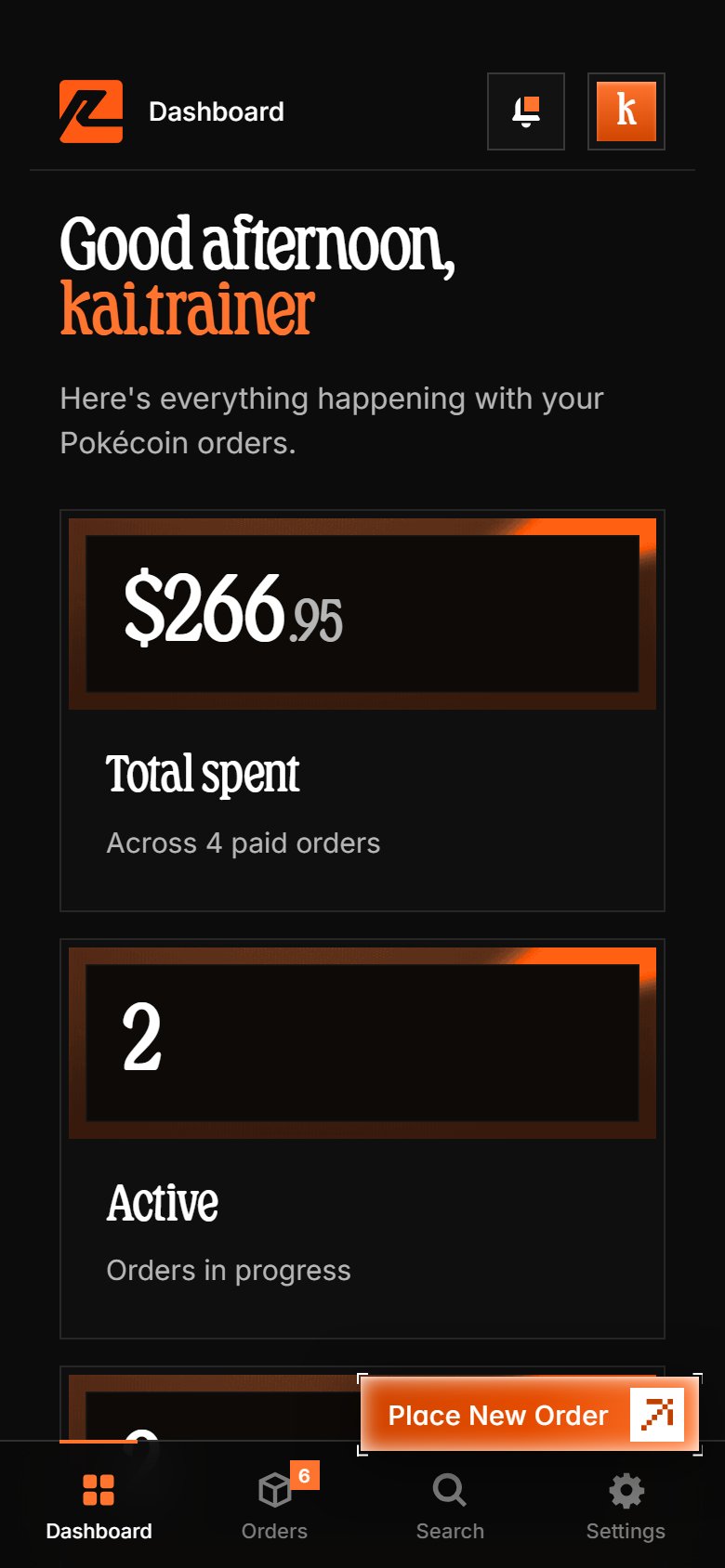
On mobile, the rail collapses into a bottom tab bar — Dashboard, Orders, Search, and Settings — and a floating **+** button starts a new order.
### Mobile navigation
On mobile, the rail collapses into a bottom tab bar — Dashboard, Orders, Search, and Settings — and a floating **+** button starts a new order.
 ***
## What to do next
From the Overview, you can:
* [Place a new order](/how-to-order) via **Place New Order**
* [View your order history](/orders) to check past purchases
* [Update your settings](/settings) to manage email preferences
***
Continue to [Orders](/orders) to learn about managing your complete order history.
***
## What to do next
From the Overview, you can:
* [Place a new order](/how-to-order) via **Place New Order**
* [View your order history](/orders) to check past purchases
* [Update your settings](/settings) to manage email preferences
***
Continue to [Orders](/orders) to learn about managing your complete order history.