> ## Documentation Index
> Fetch the complete documentation index at: https://docs.radiumstore.org/llms.txt
> Use this file to discover all available pages before exploring further.
# Orders
> View and manage your order history in the Radium Store dashboard
The Orders section provides a complete view of all your purchases — active orders awaiting delivery, unpaid orders you can still resume, and your full order history.
## Viewing your orders
Navigate to **Orders** in the side rail (or the bottom tab bar on mobile) to open your order list. Orders are shown newest first, eight per page, with pagination controls at the bottom.
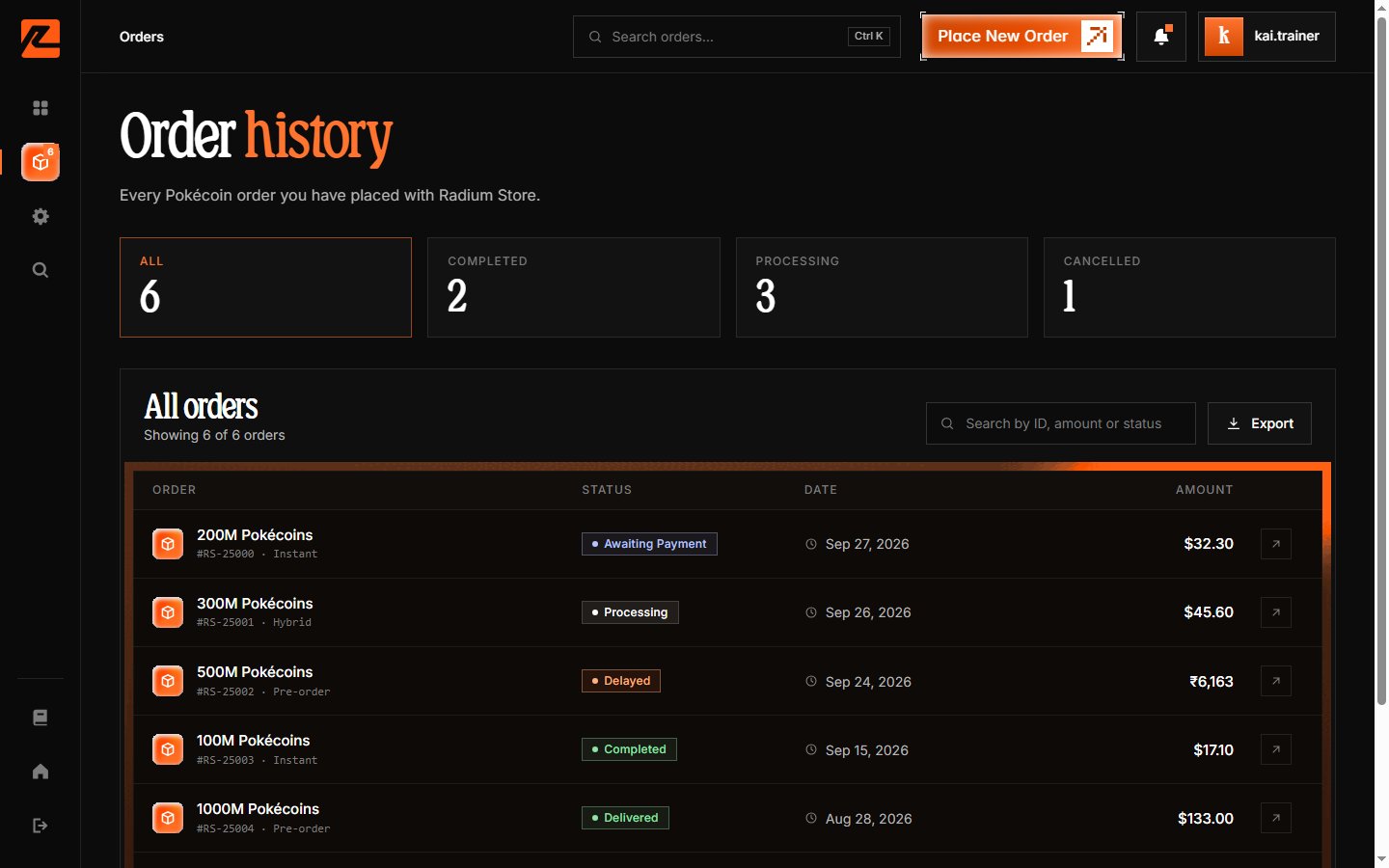 ## Order information
Each order row displays:
**Order number** — a unique identifier formatted as `RS-` followed by a number. Use this reference when contacting support about a specific order.
**Pokécoin amount** — the quantity of Pokécoins in the order, in millions (M).
**Status pill** — the current state of the order (see [tracking statuses](/statuses) for details).
**Type tag** — Instant, Pre-order, or Hybrid (part instant, part scheduled).
**Total and date** — the amount paid and when the order was placed.
## Filtering and searching
The orders page includes:
**Status chips**: **All**, **Completed**, **Processing**, and **Cancelled**, each with a count. Click a chip to show only matching orders.
**Search**: type into "Search by ID, amount or status" to match an order by its number, Pokécoin amount, or status label.
Filters combine — for example, the Processing chip plus a search for `100M` shows only in-progress 100M orders.
## Order details
Click any order to open its details page, which shows the delivery progress, tracking timeline, market IDs, receipt, and support options. See the [View your order](/view-order) guide for a full walkthrough.
## Exporting order history
Click **Export** at the top of the orders list to download `order_history.csv`. The file includes the order number, status, amount, Pokécoins, date, and payment status for every order — handy for your own records.
## Order status
Each order displays a status pill showing the current stage — for example Awaiting payment, Processing, Delayed, or Delivered. For a complete explanation of every status, see [Tracking statuses](/statuses).
***
Open any order to see live progress in [View your order](/view-order), or check what each status means in [Tracking statuses](/statuses).
## Order information
Each order row displays:
**Order number** — a unique identifier formatted as `RS-` followed by a number. Use this reference when contacting support about a specific order.
**Pokécoin amount** — the quantity of Pokécoins in the order, in millions (M).
**Status pill** — the current state of the order (see [tracking statuses](/statuses) for details).
**Type tag** — Instant, Pre-order, or Hybrid (part instant, part scheduled).
**Total and date** — the amount paid and when the order was placed.
## Filtering and searching
The orders page includes:
**Status chips**: **All**, **Completed**, **Processing**, and **Cancelled**, each with a count. Click a chip to show only matching orders.
**Search**: type into "Search by ID, amount or status" to match an order by its number, Pokécoin amount, or status label.
Filters combine — for example, the Processing chip plus a search for `100M` shows only in-progress 100M orders.
## Order details
Click any order to open its details page, which shows the delivery progress, tracking timeline, market IDs, receipt, and support options. See the [View your order](/view-order) guide for a full walkthrough.
## Exporting order history
Click **Export** at the top of the orders list to download `order_history.csv`. The file includes the order number, status, amount, Pokécoins, date, and payment status for every order — handy for your own records.
## Order status
Each order displays a status pill showing the current stage — for example Awaiting payment, Processing, Delayed, or Delivered. For a complete explanation of every status, see [Tracking statuses](/statuses).
***
Open any order to see live progress in [View your order](/view-order), or check what each status means in [Tracking statuses](/statuses).