> ## Documentation Index
> Fetch the complete documentation index at: https://docs.radiumstore.org/llms.txt
> Use this file to discover all available pages before exploring further.
# How to place an order
> Complete guide to purchasing Pokécoins on Radium Store
This guide walks you through the complete process of purchasing Pokécoins, from picking an amount to the confirmation screen.
## Before you begin
Make sure you have:
* A Radium Store account (sign in with Discord)
* Poketwo market listings for the amount you want to buy (one market ID per 50M Pokécoins)
* A valid payment method
If you do not know how to create a market listing, instructions are in Step 2 below.
## Order process overview
Checkout has **five steps**:
1. **Amount** — pick how many Pokécoins to buy
2. **Market IDs** — tell us where to deliver
3. **Method** — choose how to pay
4. **Payment** — complete the payment
5. **Done** — confirmation and live tracking
Steps 1–3 have a **USD/INR currency toggle** in the header — switch any time before paying and all prices update.
***
## Step 1: Pick your amount
Open checkout via **Place New Order** on your dashboard, **Buy Now** on [radiumstore.org](https://radiumstore.org), or the **+** button on mobile.
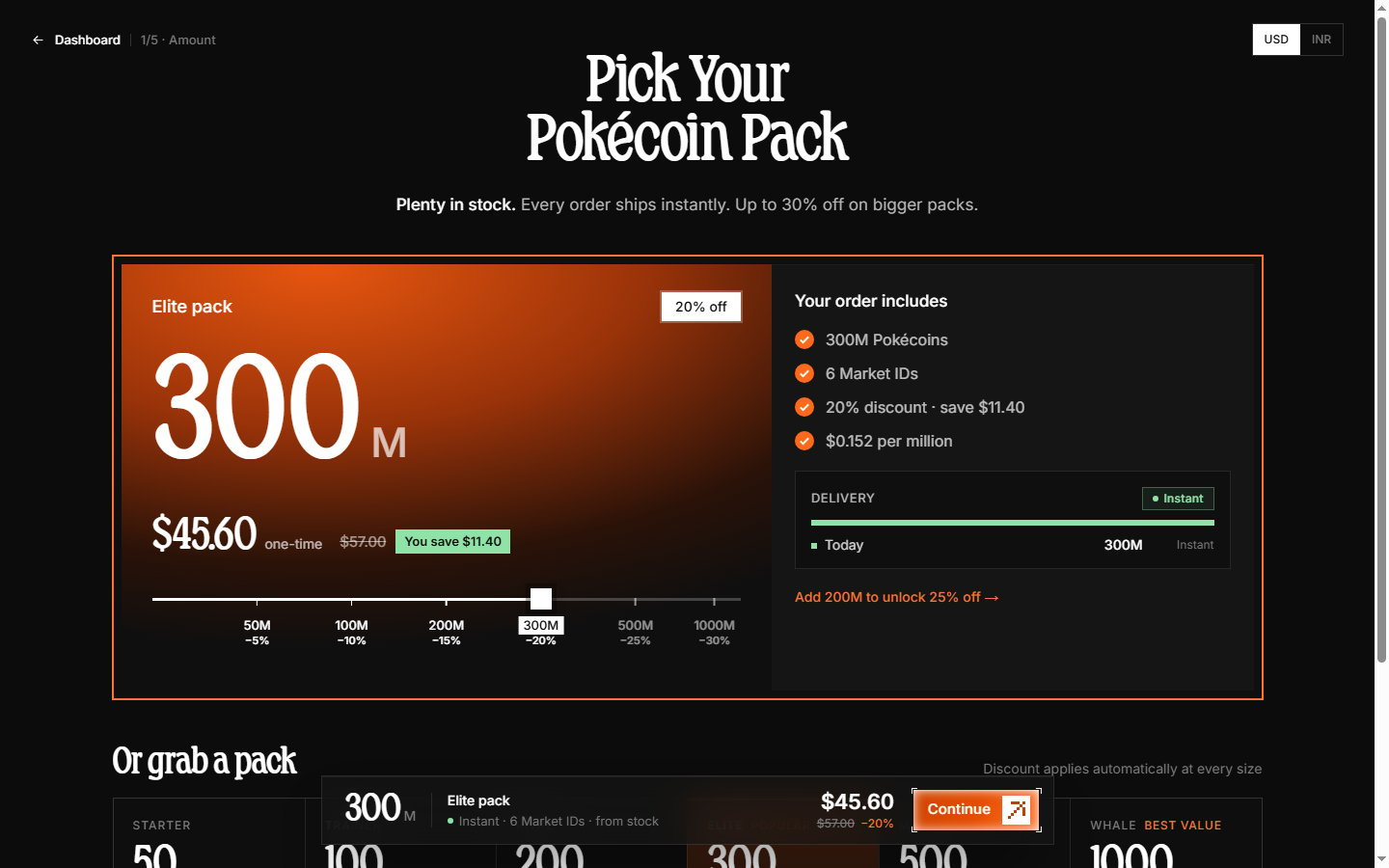 You can set the amount three ways:
* **Type it** in the amount field (whole millions, up to 10,000M)
* **Drag the slider** — it snaps to the pack sizes
* **Pick a pack card** — preset amounts with a built-in discount
### Pricing and pack discounts
The price updates live as you change the amount. Bigger packs get a bigger discount — the pack cards show each discount percentage and the right panel shows your **Pack discount** and **Total**.
### Stock and delivery estimate
The banner at the top shows current stock:
* **"Plenty in stock"** — the whole order ships instantly.
* **"XM in stock ships instantly. Anything above that is a pre-order…"** — amounts above stock become a pre-order delivered from our daily capacity.
* **"Out of stock right now"** — every order is a pre-order.
The **Delivery** panel in the right column shows exactly how your amount will be delivered — rows like "Today 300M Instant" and dated "400M Pre-order" lines for each scheduled day. See [Pre-orders](/pre-orders) for details.
Click **Continue** to move on.
***
## Step 2: Add your market IDs
Pokécoins are delivered through the Poketwo market — we buy your listings. Each market ID holds **50M Pokécoins**, so a 100M order needs two IDs.
You can set the amount three ways:
* **Type it** in the amount field (whole millions, up to 10,000M)
* **Drag the slider** — it snaps to the pack sizes
* **Pick a pack card** — preset amounts with a built-in discount
### Pricing and pack discounts
The price updates live as you change the amount. Bigger packs get a bigger discount — the pack cards show each discount percentage and the right panel shows your **Pack discount** and **Total**.
### Stock and delivery estimate
The banner at the top shows current stock:
* **"Plenty in stock"** — the whole order ships instantly.
* **"XM in stock ships instantly. Anything above that is a pre-order…"** — amounts above stock become a pre-order delivered from our daily capacity.
* **"Out of stock right now"** — every order is a pre-order.
The **Delivery** panel in the right column shows exactly how your amount will be delivered — rows like "Today 300M Instant" and dated "400M Pre-order" lines for each scheduled day. See [Pre-orders](/pre-orders) for details.
Click **Continue** to move on.
***
## Step 2: Add your market IDs
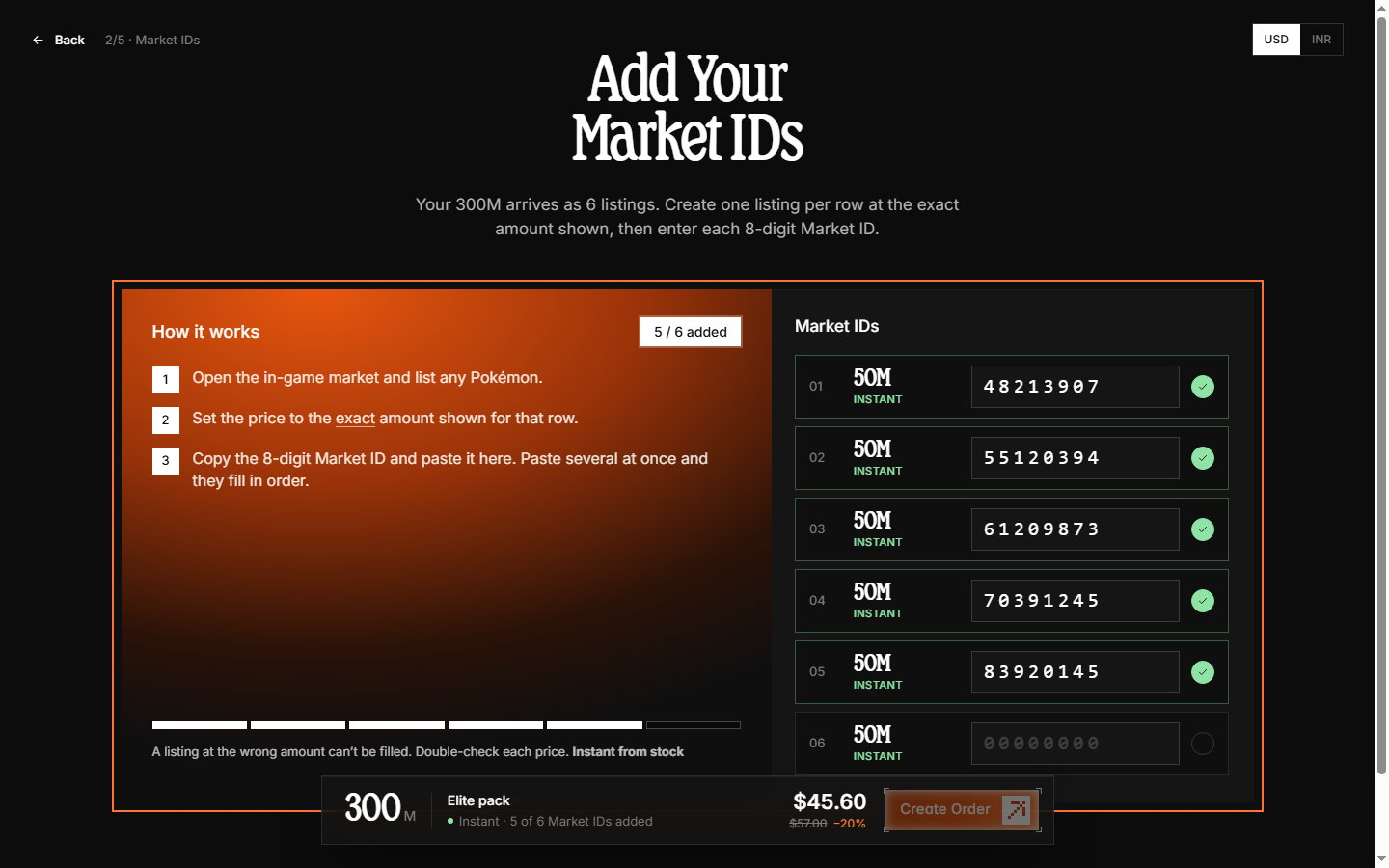
Pokécoins are delivered through the Poketwo market — we buy your listings. Each market ID holds **50M Pokécoins**, so a 100M order needs two IDs.
 ### Creating a market listing and finding its ID
In Discord:
1. Open a server where Poketwo is active, or its DMs.
2. List a Pokémon for sale at the price that covers your share: `@Poketwo m a `. For example, `@poketwo m a 4543 50000000`.
3. Confirm the listing when Poketwo asks.
4. Poketwo replies with your market listing — the **market ID** is the 8-digit code it shows.
5. Copy the market ID.

### Entering your market IDs
* Each input is **8 digits** — paste or type one ID per row.
* Pasting several IDs at once fills multiple rows automatically.
* Rows are tagged **Instant**, **Pre-order**, or **Split** so you can see which listings fill instantly and which are scheduled.
Double-check your market IDs before continuing. Pokécoins bought through the wrong listing cannot be recovered.
Click **Create Order** — your order number is reserved for 24 hours.
***
## Step 3: Choose how to pay
Your order is now created and reserved. Pick a payment method — each card shows the exact total it will charge.
### Creating a market listing and finding its ID
In Discord:
1. Open a server where Poketwo is active, or its DMs.
2. List a Pokémon for sale at the price that covers your share: `@Poketwo m a `. For example, `@poketwo m a 4543 50000000`.
3. Confirm the listing when Poketwo asks.
4. Poketwo replies with your market listing — the **market ID** is the 8-digit code it shows.
5. Copy the market ID.

### Entering your market IDs
* Each input is **8 digits** — paste or type one ID per row.
* Pasting several IDs at once fills multiple rows automatically.
* Rows are tagged **Instant**, **Pre-order**, or **Split** so you can see which listings fill instantly and which are scheduled.
Double-check your market IDs before continuing. Pokécoins bought through the wrong listing cannot be recovered.
Click **Create Order** — your order number is reserved for 24 hours.
***
## Step 3: Choose how to pay
Your order is now created and reserved. Pick a payment method — each card shows the exact total it will charge.
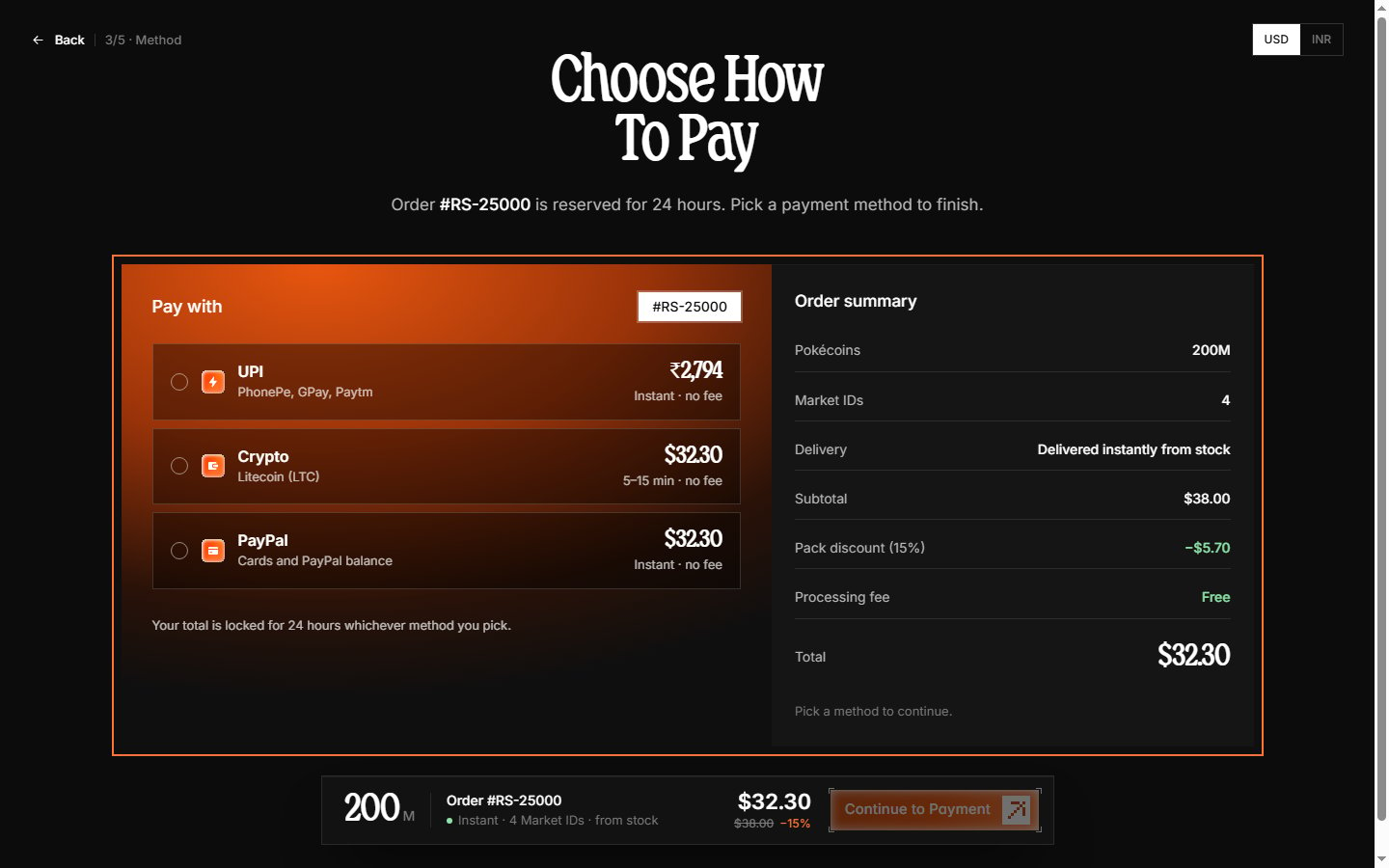 **UPI** — pay from PhonePe, GPay, Paytm or any UPI app. Charged in INR, confirms in seconds, zero transaction fee.
**Crypto** — Litecoin (LTC) via NOWPayments. Charged in USD, auto-confirms in about 5–15 minutes, no processing fee.
**PayPal** — cards and PayPal balance. Charged in USD, instant confirmation, no processing fee.
The order summary on the right lists your Pokécoins, market IDs, delivery split, subtotal, pack discount, and processing fee — which is always **Free**.
Select a method and click **Continue**.
***
## Step 4: Complete payment
The payment page shows instructions for your chosen method and polls your order every few seconds — leave it open until it confirms. An expiry timer shows how long the order is still held.
### UPI
**UPI** — pay from PhonePe, GPay, Paytm or any UPI app. Charged in INR, confirms in seconds, zero transaction fee.
**Crypto** — Litecoin (LTC) via NOWPayments. Charged in USD, auto-confirms in about 5–15 minutes, no processing fee.
**PayPal** — cards and PayPal balance. Charged in USD, instant confirmation, no processing fee.
The order summary on the right lists your Pokécoins, market IDs, delivery split, subtotal, pack discount, and processing fee — which is always **Free**.
Select a method and click **Continue**.
***
## Step 4: Complete payment
The payment page shows instructions for your chosen method and polls your order every few seconds — leave it open until it confirms. An expiry timer shows how long the order is still held.
### UPI
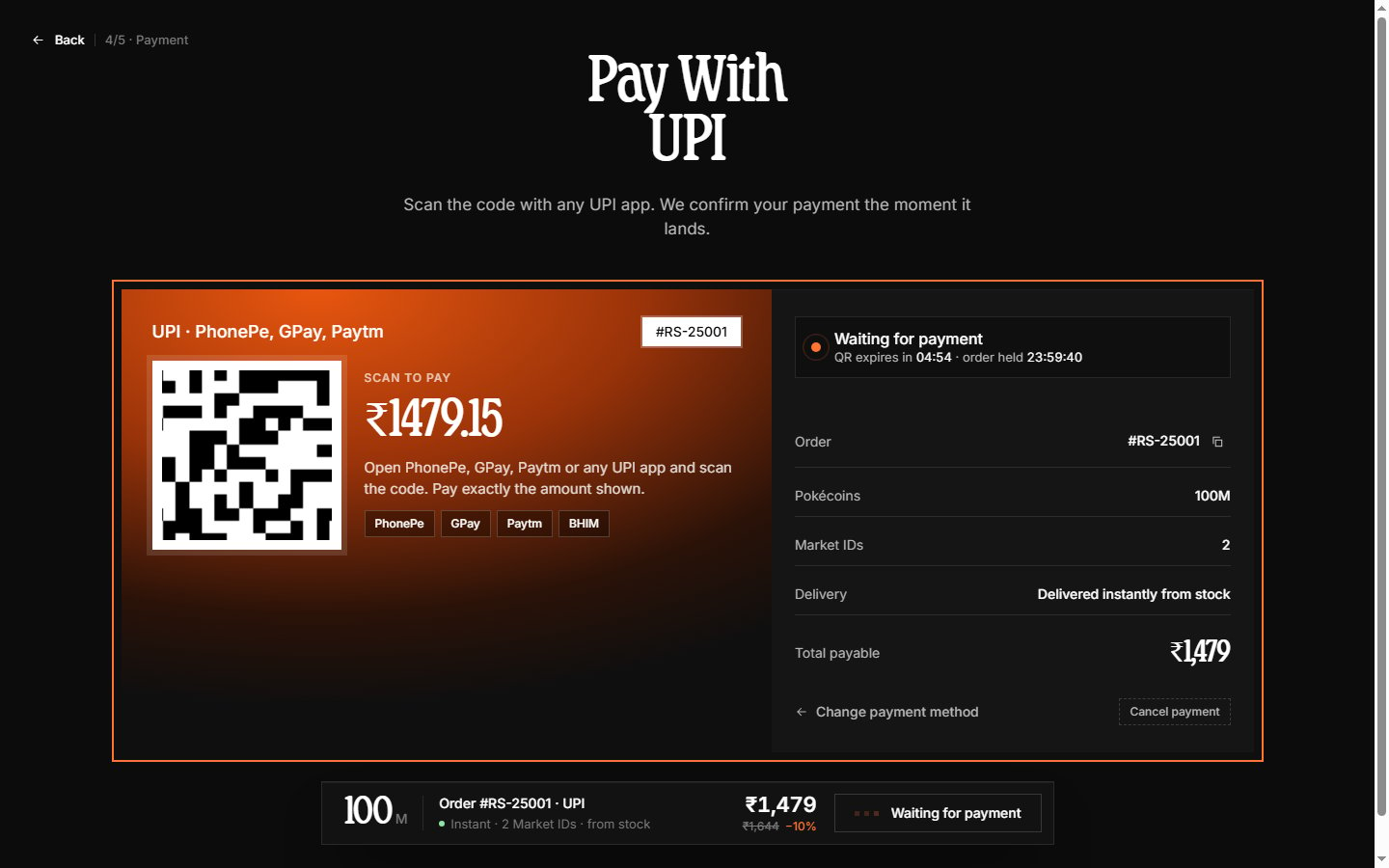 Scan the QR code with any UPI app and pay the INR total shown. The QR is valid for **5 minutes** — if it expires, a new one is generated automatically. You can also cancel the payment here to pick a different method.
### Crypto (Litecoin)
Scan the QR code with any UPI app and pay the INR total shown. The QR is valid for **5 minutes** — if it expires, a new one is generated automatically. You can also cancel the payment here to pick a different method.
### Crypto (Litecoin)
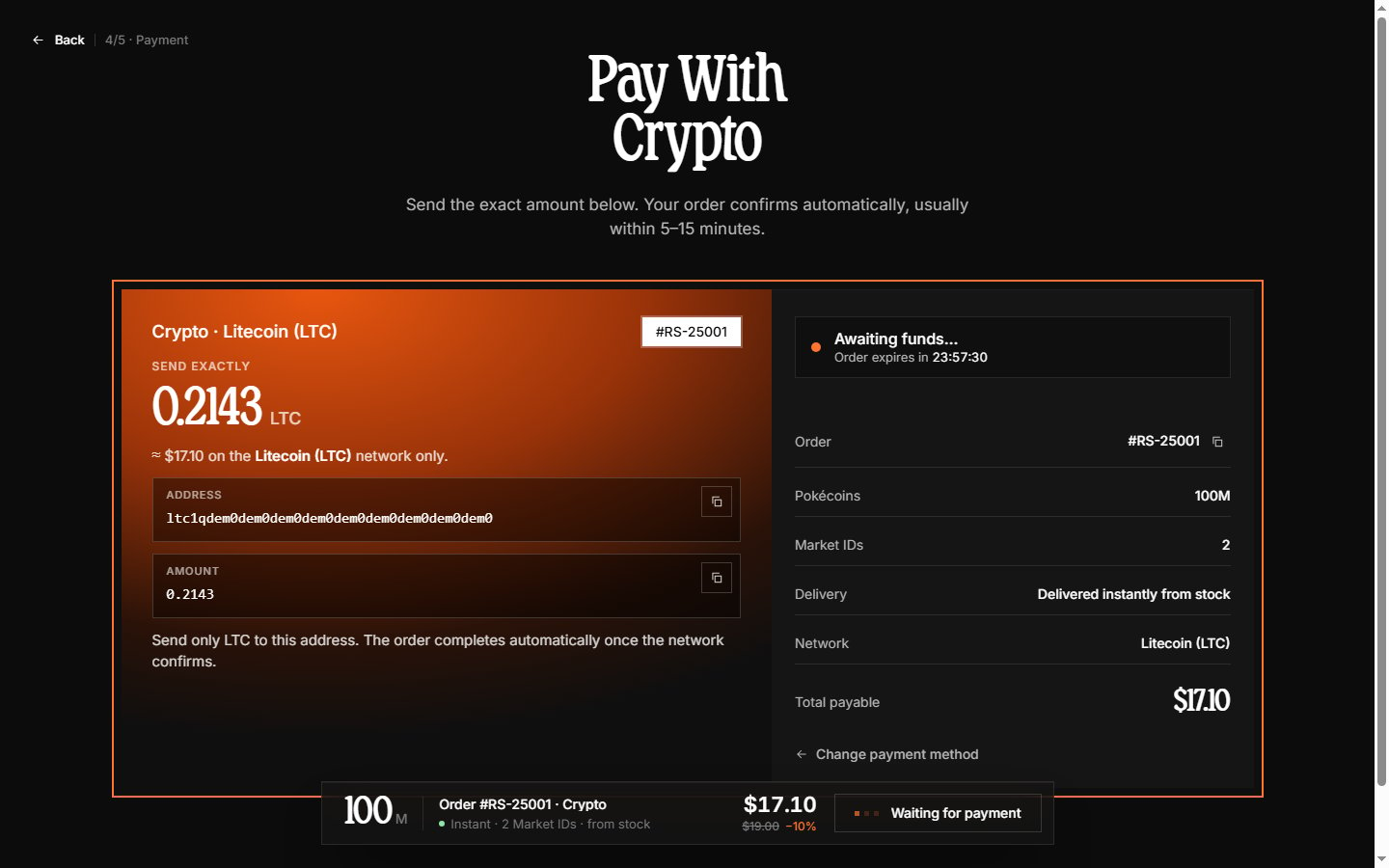 Send **exactly** the LTC amount shown to the address displayed — both have copy buttons. Send only LTC on the Litecoin network. The page watches the chain and moves on automatically once the payment confirms.
### PayPal
An embedded **PayPal button** opens PayPal's checkout in a popup window — you never leave our page for the redirect itself. Approve the payment there (PayPal balance, or a card without logging in via "Pay with Debit or Credit Card") and the popup closes; your order page updates to paid within seconds.
Do not close the payment page until it confirms. For crypto, send the exact amount — a different amount needs manual support review.
***
## Step 5: Confirmation
Once payment lands, the final screen shows **Order Confirmed** (or **Pre-Order Confirmed** for scheduled orders) with everything in one place:
* Amount paid and payment method
* Delivery split — which market IDs ship instantly and which are scheduled
* A live tracking timeline that updates in place
Send **exactly** the LTC amount shown to the address displayed — both have copy buttons. Send only LTC on the Litecoin network. The page watches the chain and moves on automatically once the payment confirms.
### PayPal
An embedded **PayPal button** opens PayPal's checkout in a popup window — you never leave our page for the redirect itself. Approve the payment there (PayPal balance, or a card without logging in via "Pay with Debit or Credit Card") and the popup closes; your order page updates to paid within seconds.
Do not close the payment page until it confirms. For crypto, send the exact amount — a different amount needs manual support review.
***
## Step 5: Confirmation
Once payment lands, the final screen shows **Order Confirmed** (or **Pre-Order Confirmed** for scheduled orders) with everything in one place:
* Amount paid and payment method
* Delivery split — which market IDs ship instantly and which are scheduled
* A live tracking timeline that updates in place
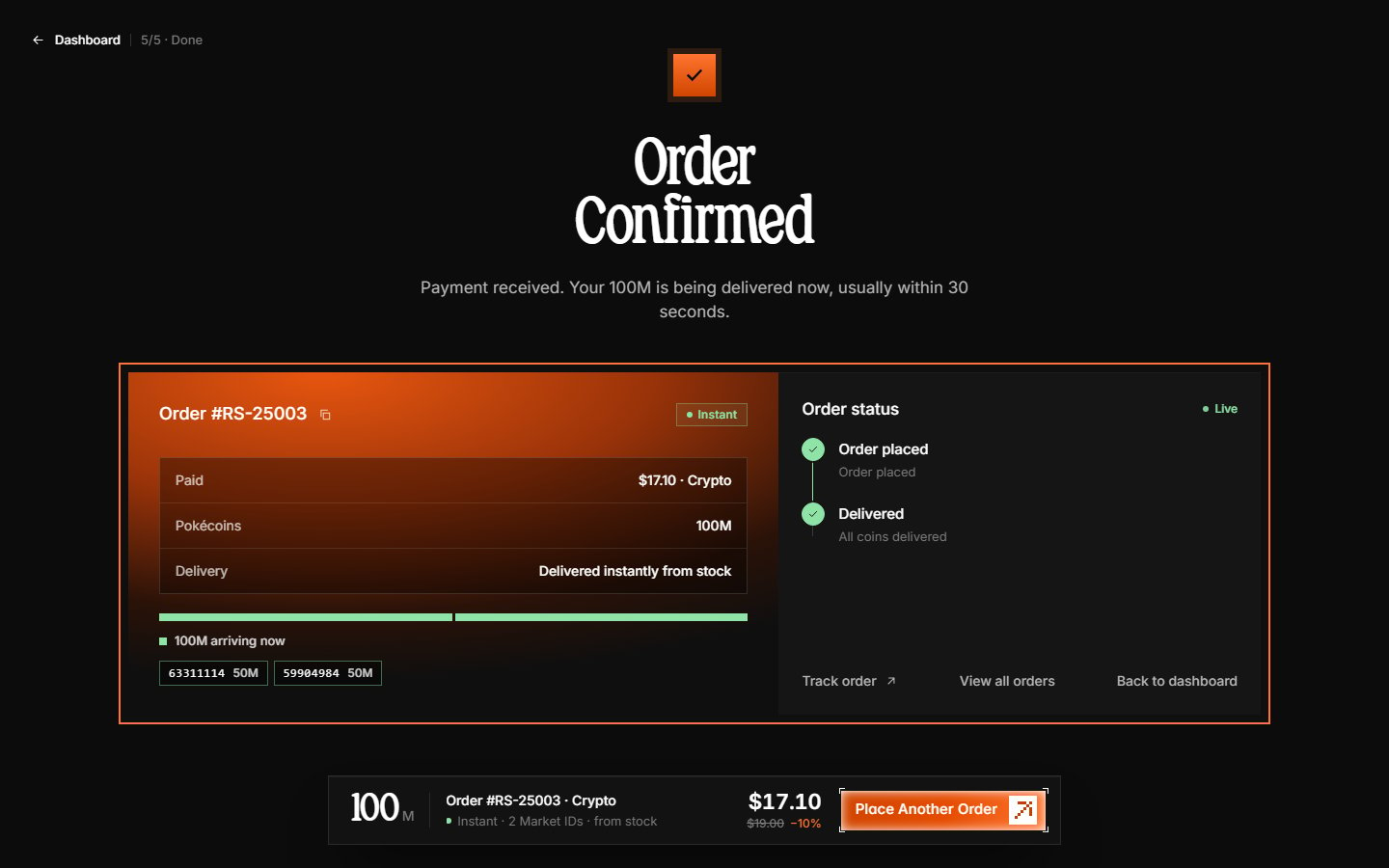 From here you can **Track order** to watch delivery, view all your orders, or **Place Another Order**.
Your order is complete. Instant orders usually deliver within seconds — check your Poketwo DMs for the market purchase. Pre-orders deliver by the dates shown on the order page.
***
## After placing your order
* Track delivery live on the [order details page](/view-order) — it updates every \~5 seconds without a refresh.
* You also get an email confirmation and a dashboard notification when delivery finishes.
* If something goes wrong, contact support on our [Discord server](https://discord.gg/TfKV8Xeh2r) with your order number.
## Troubleshooting
Some methods take a moment to confirm. Wait a few minutes — the order page polls for updates automatically. If it has not updated within 30 minutes, contact support with your order number and payment proof.
Occasionally a Poketwo outage delays the visible handover even when the order shows delivered. Your order and coins are safe — contact support with the order number and we will sort it out.
Open your dashboard — unpaid orders appear in **Incomplete orders** on the Overview with a **Resume** button, and in the Orders list as **Awaiting payment**. Orders are held for 24 hours; after that they expire and you can start a new one.
***
Learn how to track your order in [View your order](/view-order).
From here you can **Track order** to watch delivery, view all your orders, or **Place Another Order**.
Your order is complete. Instant orders usually deliver within seconds — check your Poketwo DMs for the market purchase. Pre-orders deliver by the dates shown on the order page.
***
## After placing your order
* Track delivery live on the [order details page](/view-order) — it updates every \~5 seconds without a refresh.
* You also get an email confirmation and a dashboard notification when delivery finishes.
* If something goes wrong, contact support on our [Discord server](https://discord.gg/TfKV8Xeh2r) with your order number.
## Troubleshooting
Some methods take a moment to confirm. Wait a few minutes — the order page polls for updates automatically. If it has not updated within 30 minutes, contact support with your order number and payment proof.
Occasionally a Poketwo outage delays the visible handover even when the order shows delivered. Your order and coins are safe — contact support with the order number and we will sort it out.
Open your dashboard — unpaid orders appear in **Incomplete orders** on the Overview with a **Resume** button, and in the Orders list as **Awaiting payment**. Orders are held for 24 hours; after that they expire and you can start a new one.
***
Learn how to track your order in [View your order](/view-order).